

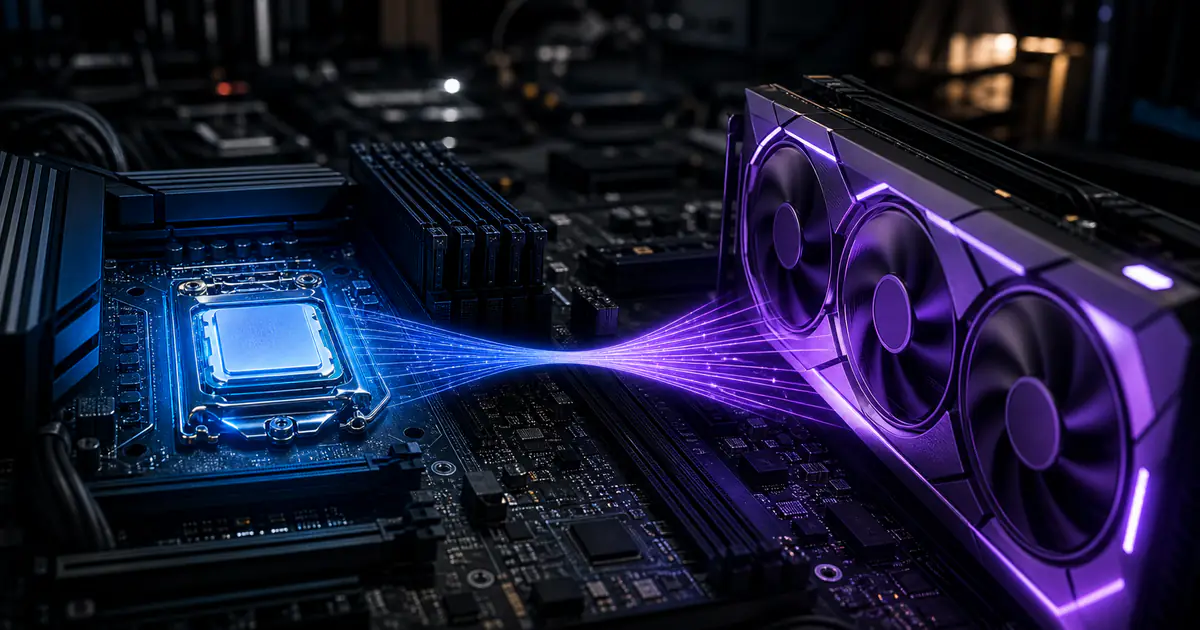
CPU vs GPU Bottleneck: What's the Difference and How to Fix It
Introduction
Every gaming PC relies on a delicate balance between its core components. When that balance breaks — when one part can't keep pace with the rest — you get a bottleneck. The result is lower FPS, choppy gameplay, and a frustrating experience, even if you've spent good money on your hardware.
The two most common types are CPU bottlenecks and GPU bottlenecks, and understanding the difference between them is critical to diagnosing performance problems and making smart upgrade decisions. In this guide, we'll explain exactly what each type means, how to spot them, and what to do about it.
If you are deciding between two parts, use the Component Comparison Tool to compare their normalized performance and compatibility signals before choosing an upgrade.
What Is a CPU Bottleneck?
A CPU bottleneck occurs when your processor can't process game logic, physics, AI, and other calculations fast enough to keep your GPU fed with frames to render. Your GPU ends up waiting idle for the CPU to finish its work, resulting in lower utilization and reduced FPS.
Symptoms of a CPU Bottleneck
- GPU usage is lower than expected for that scene after ruling out frame caps, V-Sync, menus, and light workloads
- One or more CPU cores repeatedly reach full utilization while frame time worsens
- FPS doesn't improve when you lower graphics settings or resolution
- Stuttering and frame drops in CPU-intensive scenes (crowded areas, physics-heavy moments)
- Little FPS change when GPU-heavy settings are reduced — a useful clue, but not proof by itself
Common Causes
- Pairing a high-end GPU with an older or budget CPU
- Playing CPU-intensive games like Cities: Skylines 2, Civilization VI, or large Minecraft modpacks
- Running background tasks that consume CPU resources (streaming, recording, browser tabs)
- Older CPUs with low IPC (instructions per clock) or few cores
A CPU bottleneck is like having a gourmet chef (GPU) waiting for ingredients from a slow supplier (CPU). The chef can cook incredibly fast, but only if the ingredients arrive on time.
What Is a GPU Bottleneck?
A GPU bottleneck occurs when your graphics card is the component working at maximum capacity while the CPU has headroom to spare. The GPU can't render frames fast enough at the given resolution and settings.
A GPU reaching high utilization can be normal in a graphics-heavy workload, but it is not automatically proof that the rest of the system is healthy. Confirm the pattern with frame-time data and repeatable setting changes.
Symptoms of a GPU Bottleneck
- GPU usage is near its maximum for the tested scene while clocks and power behavior remain normal
- No CPU core is repeatedly saturated during the same frame-time spikes
- FPS increases when you lower graphics settings or reduce resolution
- FPS decreases predictably when you enable ray tracing or increase anti-aliasing
- Performance changes consistently when GPU-heavy settings or resolution change
Common Causes
- Playing at high resolutions (4K or ultrawide) with demanding visual settings
- Enabling resource-hungry features like ray tracing, ultra shadows, or volumetric fog
- Using an older or mid-range GPU with a powerful modern CPU
- Not using upscaling technologies like DLSS, FSR, or XeSS
CPU vs GPU Bottleneck: Side-by-Side Comparison
| Aspect | CPU Bottleneck | GPU Bottleneck |
|---|---|---|
| GPU Usage | Often below its expected range after caps and light workloads are excluded | Often near its maximum for the tested scene |
| CPU Usage | One or more cores may be saturated | No core repeatedly saturated during the same issue |
| Lowering GPU-heavy settings helps? | Often little change | Often improves FPS or frame time |
| Increasing resolution helps? | Usually adds GPU load and lowers or preserves FPS; use it as a comparison, not a fix | Usually increases the GPU workload |
| Lowering resolution helps? | May have little effect if the workload is CPU-limited | Often helps if the workload is GPU-limited |
| Common in | Esports/older CPUs + new GPUs | 4K gaming / old GPUs |
| Is It a Problem? | Only if it prevents your target experience | Only if it prevents your target experience |
| Primary next step | Verify per-core use and game-specific benchmarks | Compare GPU-heavy settings and game-specific benchmarks |
How to Identify Which Bottleneck You Have
Follow this simple diagnostic process to determine your bottleneck type:
Method 1: Monitor During Gameplay
- Install MSI Afterburner with RivaTuner Statistics Server
- Enable the on-screen display for CPU usage, GPU usage, FPS, and frame time
- Play a demanding game for at least 10 minutes
- Observe the utilization patterns:
CPU Bottleneck Pattern:
┌──────────────────────────────────┐
│  CPU Usage:  ██████████████ 97%  │
│  GPU Usage:  ████████       55%  │
│  FPS:        62                  │
│  Frame Time: 16.1ms              │
└──────────────────────────────────┘

GPU Bottleneck Pattern (Healthy):
┌──────────────────────────────────┐
│  CPU Usage:  ██████         42%  │
│  GPU Usage:  ██████████████ 98%  │
│  FPS:        144                 │
│  Frame Time: 6.9ms               │
└──────────────────────────────────┘
Method 2: The Resolution Test
This is a quick and reliable test:
- Set your game to 720p, lowest settings
- Record the FPS
- Set your game to your native resolution, highest settings
- Record the FPS
- Compare:
- If FPS is similar at both settings → CPU bottleneck
- If FPS drops significantly at higher settings → GPU bottleneck
Method 3: Use a Bottleneck Calculator
A calculator can provide a quick comparison of normalized component scores. It cannot measure lost FPS or determine the limiting component in every game, so use it alongside repeatable monitoring and game-specific benchmarks. Follow the full step-by-step bottleneck testing guide when diagnosing a real system, and use the FPS estimation guide to understand how planning ranges are calculated.
Check your CPU-GPU balance with the PC Bottleneck CalculatorHow to Fix a CPU Bottleneck
If your CPU is holding back your GPU, here are your options ranked from easiest to most involved:
Software Optimizations
- Close background applications — Browsers, Discord, and streaming software all steal CPU cycles
- Lower CPU-bound settings — NPC density, draw distance, physics quality, simulation speed
- Update your game and chipset drivers — Patches often include CPU optimization
- Use default process priority — Changing priority can starve other services or create new instability; address background workloads directly instead
Hardware Solutions
- Review memory configuration — Compare supported capacity, channels, and memory settings using CPU and motherboard documentation
- Return tuning to stock while diagnosing — CPU, GPU, and memory overclocks can introduce instability or distort the comparison
- Consider a CPU upgrade only after testing — Compare current independent benchmarks for your games, target settings, and total platform cost
| Criterion | What to compare | Why it matters |
|---|---|---|
| Game performance | Recent independent tests for your games and resolution | CPU ranking changes by engine and settings |
| Platform cost | CPU, motherboard, memory, and cooler | A processor price alone does not show upgrade value |
| Frame time | Average and low-percentile results | Smoothness may matter more than average FPS |
| Upgrade path | Socket support and firmware requirements | Determines later cost and compatibility |
How to Fix a GPU Bottleneck
A GPU-limited test means the graphics workload reaches its limit first in that scenario. If you want more frames, compare these options and retest:
Software Optimizations
- Compare DLSS / FSR / XeSS modes — Upscaling can improve performance in supported games, but image quality, latency, and gains vary by implementation and mode
- Lower shadow quality — Shadows are one of the most GPU-intensive settings
- Reduce anti-aliasing — Switch from MSAA to TAA or FXAA
- Disable or reduce ray tracing — RT is extremely GPU-intensive
- Use a game's built-in benchmark — Find the optimal balance between visuals and performance
Hardware Solutions
- Consider a GPU upgrade only after testing — Compare independent benchmarks, total cost, PSU requirements, and case clearance for your target
- Review cooling only when measurements point to it — Compare model-specific temperature and clock guidance; follow the case and component manuals or use qualified support
- Keep stock settings while diagnosing — If clocks fall with temperature or power limits, compare model-specific guidance and use qualified support for hardware problems
When Should You Upgrade?
Not every bottleneck warrants an upgrade. Here's a practical framework:
Consider a CPU upgrade if:
- Repeatable tests show one or more CPU cores saturating while the GPU remains underused after caps and other causes are excluded
- You've already lowered CPU-intensive settings
- Independent benchmarks show that a supported platform upgrade meets your target frame time and FPS
- You play CPU-heavy games (strategy, simulation, MMOs with large player counts)
Consider a GPU upgrade if:
- Repeatable tests show the GPU limits your target at the settings you intend to use
- You're moving to a higher resolution monitor (e.g., 1080p → 1440p)
- Your GPU doesn't support modern features you want (ray tracing, DLSS/FSR)
- Measured VRAM pressure in your games causes repeatable stutter, texture reductions, or allocation problems
Consider a memory change if:
- Monitoring shows repeatable capacity pressure, paging, or memory-related frame-time spikes
- The installed channel and module layout does not match the CPU and motherboard documentation
- Independent tests of a supported memory configuration show a meaningful benefit for your workload
Frequently Asked Questions
Can a bottleneck damage my components?
The limiting-component relationship itself does not physically damage hardware. However, crashes, abnormal temperatures, unstable tuning, failing cooling, or power problems are separate issues and should not be dismissed as a harmless bottleneck.
Is a 10% calculator score gap bad?
A 10% calculator result is a relative normalized-score gap, not measured lost performance. There is no universal good or bad threshold. Consider changes only when repeatable benchmarks show that the system misses your target experience and a specific upgrade provides worthwhile improvement.
Does the limiting component change per game?
Yes. Different games, scenes, resolutions, and settings stress components differently. The site's relative score-gap calculation is not a per-game measurement, so test the specific games and settings you use most.
Continue your PC planning
Use the guide as context, then test the decision with a focused calculator or a worked build example.
Relevant calculators
Share this article
Related Articles
Gaming GPU Buying Guide 2026: A Specification-Based Shortlist
Compare a specification-based shortlist of 2026 graphics cards across budget tiers, from the RTX 5060 to the RTX 5090.
How Much VRAM Do You Need for Gaming at 1080p, 1440p, and 4K?
A calculation-first guide to choosing graphics-memory capacity without treating resolution, allocated memory or one game's peak reading as a universal requirement.
How to Check for PC Bottlenecks: Step-by-Step Guide
Is your PC not performing as expected? Learn how to detect and fix CPU, GPU, and RAM bottlenecks with our comprehensive step-by-step guide.